
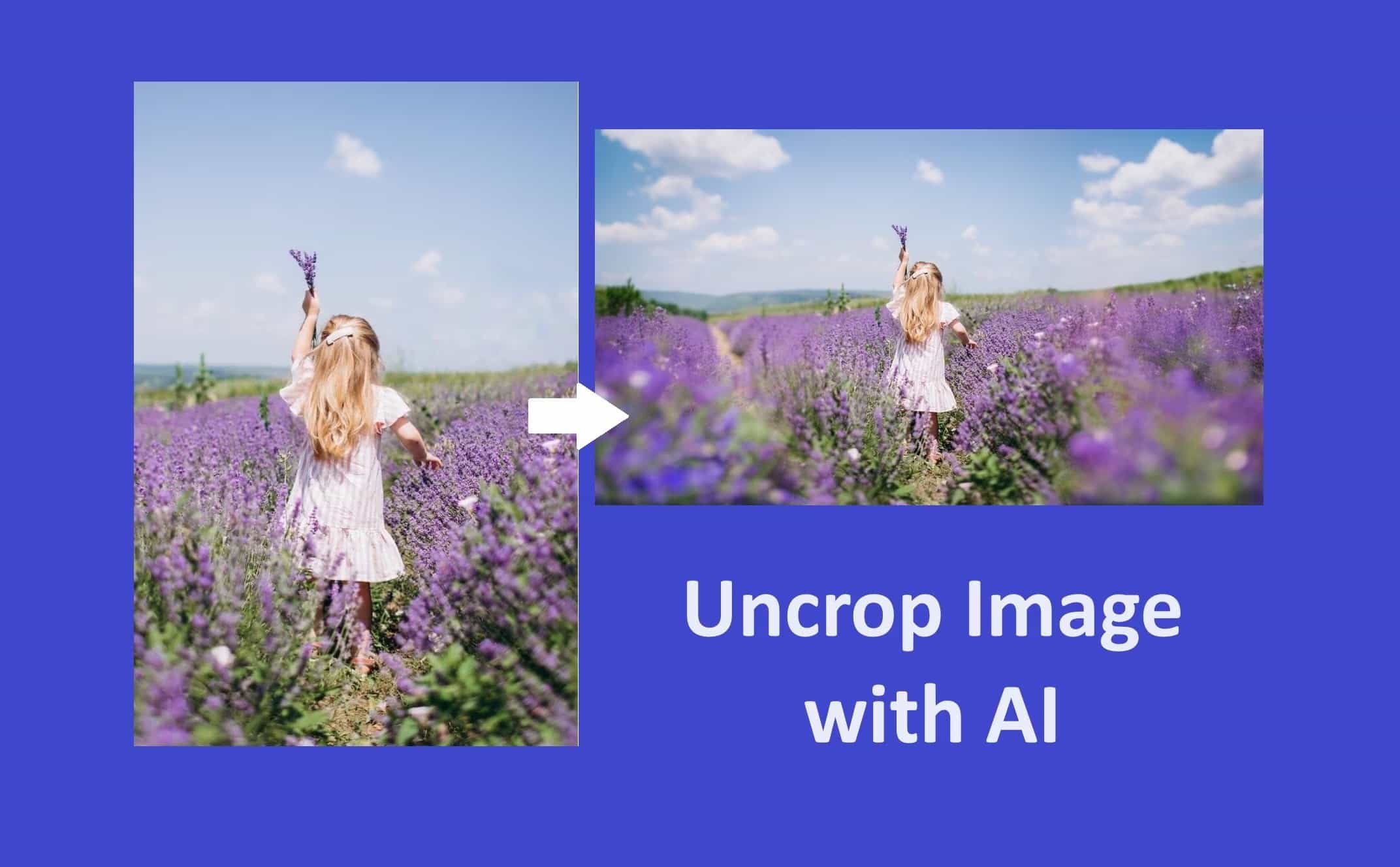
In the digital landscape, tools like Uncrop.org have revolutionized how individuals and businesses handle image editing. This online platform utilizes advanced AI technology to help users expand images seamlessly, making it easier to adapt visuals for various needs. This guide will provide step-by-step instructions on how to effectively use Uncrop.org to achieve stunning image expansions.
Getting Started with Uncrop.org
To begin using Uncrop to expand images, users must first navigate to the official website:

- Open a Web Browser: Launch your preferred web browser, such as Chrome, Firefox, or Safari.
- Type the URL: Enter "uncrop.org" in the address bar and press Enter to access the site.
Upon arrival, users will find a clean, user-friendly interface that guides them through the process of uncropping images.
Create an Account
While users can upload and expand images without creating an account, having one may offer additional benefits, such as saving previously processed images or accessing premium features.
- Sign Up: Click on the “Sign Up” or “Create Account” option.
- Fill in the Details: Provide the necessary information, including your name, email address, and password.
- Verify Your Account: Check your email for a confirmation link and follow the instructions to verify your account.
Uploading Your Image
To utilize Uncrop’s capabilities, users must select the image they wish to expand:
- Select an Image File: Ensure the image is in one of the supported formats (JPG, PNG, WebP) and does not exceed 50MB in size.
- Consider Your Needs: Choose an image that will benefit from outpainting, such as a photograph that needs to fit a specific format or an artwork that requires a wider presentation.
Upload the Image
Once an image is selected, it’s time to upload it to the platform:
- Click the Upload Button: On the main page, users will find an option to upload images.
- Browse Your Files: A file explorer window will open, allowing users to navigate to the chosen image.
- Select and Upload: Click on the desired image file and confirm the upload. Users will see a progress indicator as the image uploads to the platform.
Setting Parameters for Image Expansion
Choose Your Desired Size and Aspect Ratio
After uploading the image, users can specify how they want to expand it:
- Aspect Ratio Selection: Uncrop provides options for various aspect ratios, including square, portrait, landscape, and custom sizes. Choose an aspect ratio that aligns with the intended use of the image.
- Specify Dimensions: If users require a specific dimension, they can input the desired width and height in pixels.
Before finalizing the expansion, users can preview how their image will look:
- Check the Preview: Uncrop will generate a preview of the expanded image based on the chosen size and aspect ratio.
- Assess the Composition: Evaluate whether the expanded areas maintain a natural appearance and enhance the overall visual appeal.
Generating the Expanded Image
Initiate the Outpainting Process
Once satisfied with the selected parameters and preview, users can proceed to generate the outpainted image:
- Click the Create Button: This action will prompt the AI to analyze the original image and create an expanded version.
- Wait for Processing: Depending on the complexity of the image, this process may take a few moments. Users will see a loading indicator while the AI works.
Review the Expanded Image
Once the outpainting process is complete, users can review the results:
- Inspect the Image: Take a close look at the expanded image, focusing on how well the outpainted areas blend with the original content.
- Make Further Adjustments if Necessary: If the results are not satisfactory, users can return to the previous steps to adjust the aspect ratio or dimensions before regenerating the image.
Downloading and Using the Expanded Image

When users are satisfied with the output, it’s time to download the image:
- Click the Download Button: This option will prompt the browser to save the newly expanded image.
- Choose a Save Location: Select a folder on your device where the image will be stored for easy access later.
With the image downloaded, users can now use it across various applications:
- Social Media Posts: Adjust your expanded image for platforms like Instagram, Facebook, or Twitter, ensuring it fits perfectly within the required dimensions.
- E-commerce Listings: Use the expanded images for product displays on websites like Shopify or Amazon, ensuring they meet specific size requirements.
- Promotional Materials: Incorporate the images into flyers, banners, or online ads, taking advantage of the high-quality visuals.
Advanced Tips
Experiment with Different Images
Users are encouraged to experiment with a variety of images. Different types of visuals—such as landscapes, portraits, or abstract art—can yield unique results. This exploration can help users understand the tool's capabilities and find the best applications for their needs.
Utilize High-Quality Source Images
The quality of the original image can significantly impact the final output. Using high-resolution images will generally produce better results, as the AI has more detail to work with. If the original image is of poor quality, the outpainted sections may not blend as seamlessly.
Take Advantage of Feedback and Community
Many users share their experiences and tips online. Engaging with communities on social media or forums can provide additional insights into how to maximize the use of Uncrop. Learning from others’ successes and challenges can enhance one’s own usage of the tool.
Troubleshooting
Image Quality Concerns
If users notice that the expanded image lacks quality or the outpainted areas appear unnatural:
- Revisit the Original Image: Ensure that the source image is of high quality and appropriate for expansion.
- Adjust Parameters: Experiment with different aspect ratios or sizes, as these factors can influence the outcome.
Processing Delays
In some cases, users may experience delays during the outpainting process:
- Check Your Internet Connection: A slow or unstable connection may affect processing speed.
- Try Again Later: If the service is experiencing high traffic, waiting a few moments and attempting again may yield better results.
Limitations of Uncrop
Complexity of Images
While Uncrop excels in many scenarios, the complexity of certain images can present challenges. Highly detailed scenes with intricate backgrounds may not always produce ideal results. Users should be prepared for some trial and error, particularly with complex visuals.
AI Limitations
The AI's ability to predict and generate content relies heavily on its training data. In some instances, the generated outpainted areas may not accurately reflect the style or context of the original image. Users should review the expanded images carefully to ensure satisfaction.
Conclusion
Using Uncrop.org offers a practical solution for anyone looking to expand images without extensive editing skills. With a user-friendly interface and powerful AI capabilities, the tool simplifies the process of image enhancement. By following the steps outlined in this guide, users can effectively navigate Uncrop and produce high-quality, expanded images suitable for a range of applications.
As with any digital tool, understanding its strengths and limitations is key to maximizing its potential. With practice and experimentation, users can become proficient in using Uncrop to create stunning visual content that meets their needs. Whether for personal projects, professional endeavors, or social media, Uncrop.org provides a valuable resource for enhancing images efficiently.